
Share Your QR Code
With your location, queue, and devices set up, the final step is to get your QR code in front of customers. Scanning it lets customers join the queue from their own phone and track their position without standing in a physical line.
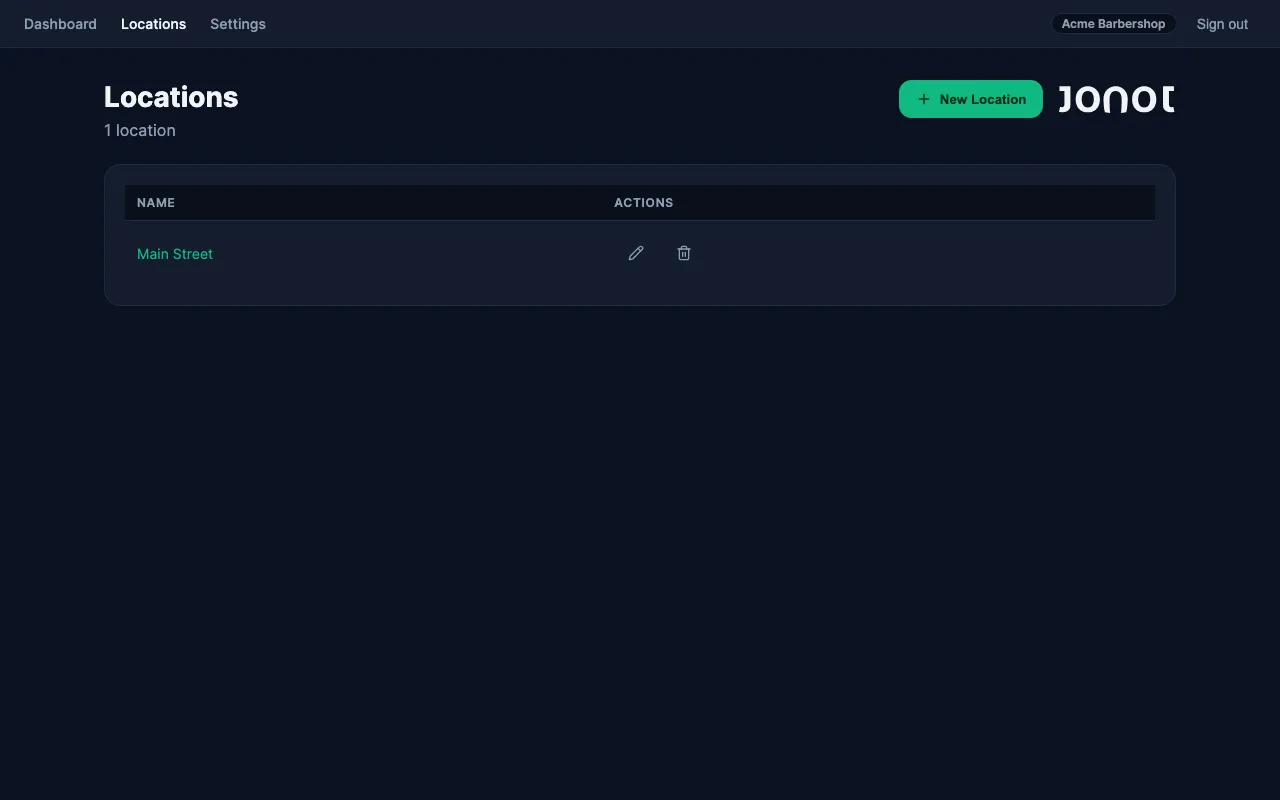
Get your QR code
Section titled “Get your QR code”- Go to the Locations page in admin.
- Click the Print QR poster icon on the location row.
- In the dialog, select a specific queue or choose Whole location to generate a poster that covers all queues.
From the poster view you can:
- Copy the join URL — the direct link customers can visit to join the queue:
https://customer.jonot.io/{org}/{location}/{queue}
- Download a printable QR poster — formatted for printing. Display it at your entrance, waiting area, or service counter so customers can scan it as they arrive.
How customers use it
Section titled “How customers use it”Customers point their phone camera at the QR code (no app install required — the camera’s built-in QR reader works). They are taken to https://customer.jonot.io/{org}/{location}/{queue}, where they tap Join Queue. They receive a ticket number and can watch their position update in real time.
Your queue is live
Section titled “Your queue is live”Your queue is live. Customers can now join by scanning the QR code — see the Guides section for day-to-day operations such as calling customers, handling no-shows, and managing your team.