
Add Your First Location
After checkout you are redirected to https://admin.jonot.io. A location represents a physical venue or branch — it is the container for your queues and devices.
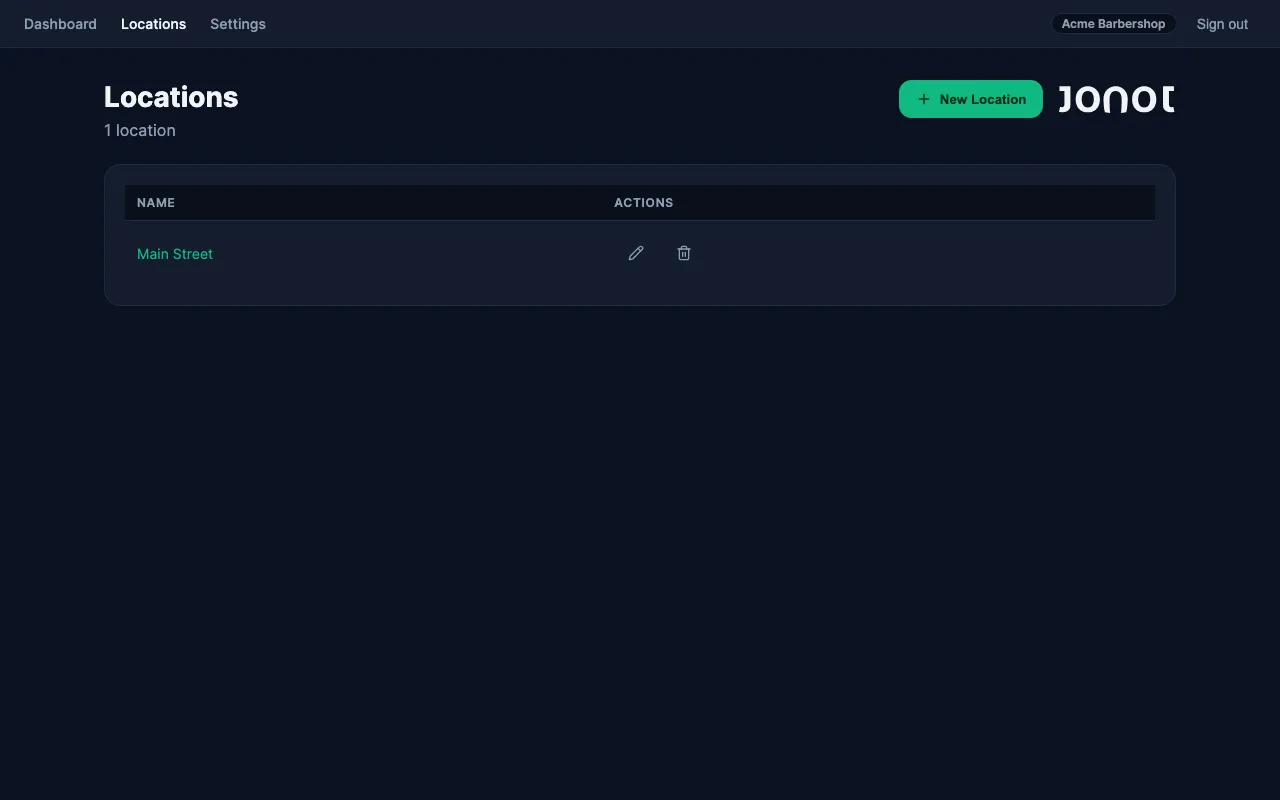
Create a location
Section titled “Create a location”- In the admin sidebar, go to Locations.
- Click New Location.
- Fill in the location details:
| Field | Required | Notes |
|---|---|---|
| Name | Yes | The display name for this venue, e.g. “Main Street Branch” |
| Receipt header | No | Up to 48 characters. Printed at the top of every kiosk ticket receipt. Use it for a welcome message or your business name. |
| Receipt footer | No | Up to 48 characters. Printed at the bottom of every receipt. Useful for contact details or a thank-you message. |
- Click Save. The location is created and you are taken to its detail page.
What comes next
Section titled “What comes next”Once the location exists, you can add queues, pair devices, and invite staff to it. Each location is independent — it has its own queues, its own paired kiosks/displays/desks, and its own team members.