
Pair a Desk Terminal
The desk is the staff-facing interface used to call customers, mark them as served, or skip them. It runs in a browser on any PC or tablet at the service counter.
Pairing steps
Section titled “Pairing steps”Pairing follows the same two-device handshake as the kiosk and display: the device requests a code and shows it on screen; you enter that code in admin to activate it.
Step 1 — request a code on the staff computer or tablet
Section titled “Step 1 — request a code on the staff computer or tablet”- On the device that will be used by staff, open a browser and go to
https://desk.jonot.io/pair. - The desk requests a pairing code and displays it on screen — a 7-character code like
K7M-4PQ, valid for 10 minutes.
Keep the screen visible. You will type this code into admin in the next step.
Step 2 — activate the device in admin
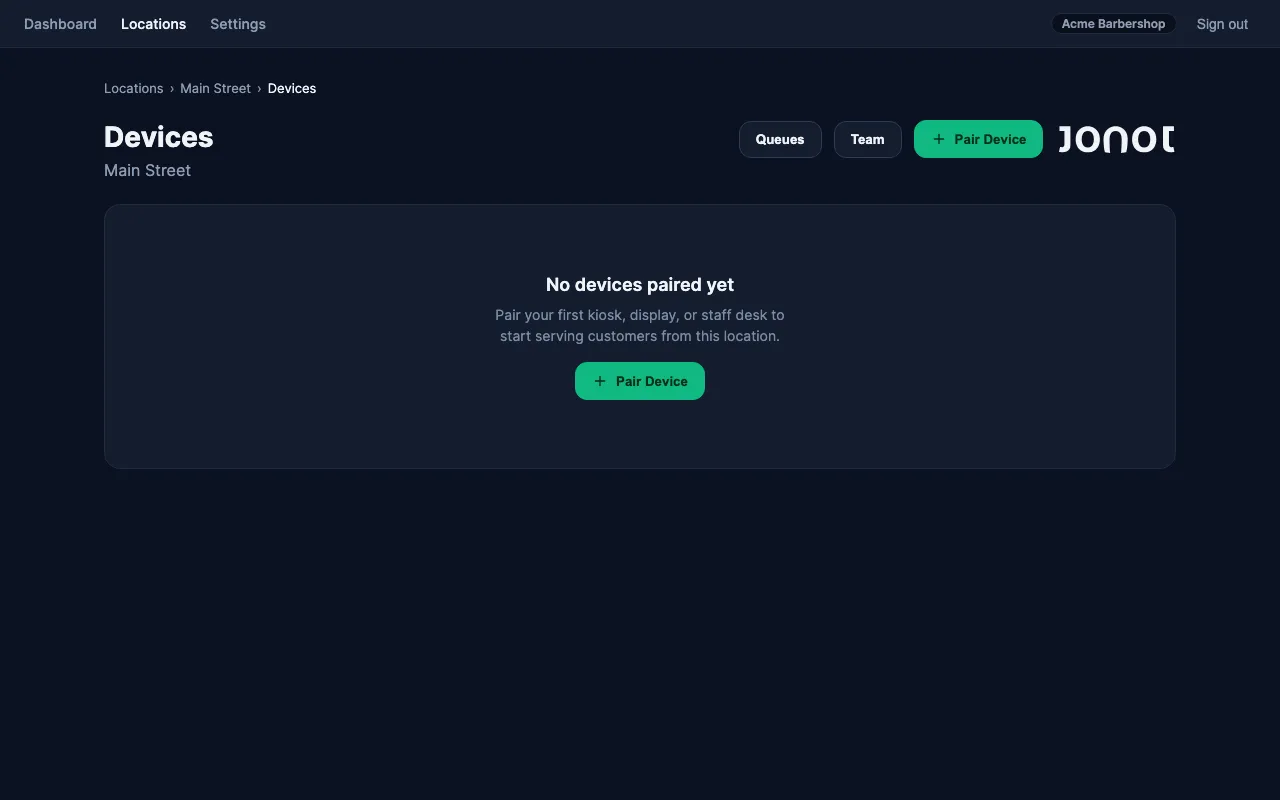
Section titled “Step 2 — activate the device in admin”- In admin, open your location and go to the Devices tab.
- Click Pair device and select Desk as the device type.
- Choose the queue this desk will serve.
- Optionally give the desk a name (e.g. “Desk 1”, “Counter A”) — this name appears on the display screen when a ticket is called.
- Enter the 7-character code shown on the desk screen.
- Click Activate. The desk detects activation and opens the queue management view.
If the code expires before you enter it in admin, go back to the desk’s /pair page to request a new one.
No staff login required
Section titled “No staff login required”The desk authenticates using a device credential, not a personal Jonot account. Staff do not need to sign up or log in — pairing the device is sufficient. This means the desk session is shared on that computer for anyone who uses it.
If you need to revoke desk access, go to admin → Devices and remove the device session. The desk will be logged out at the next request.