
Share Your QR Code
After you set up your location, queue, and devices, share your QR code with customers. They can scan it to join the queue on their phone and track their position without standing in a physical line.
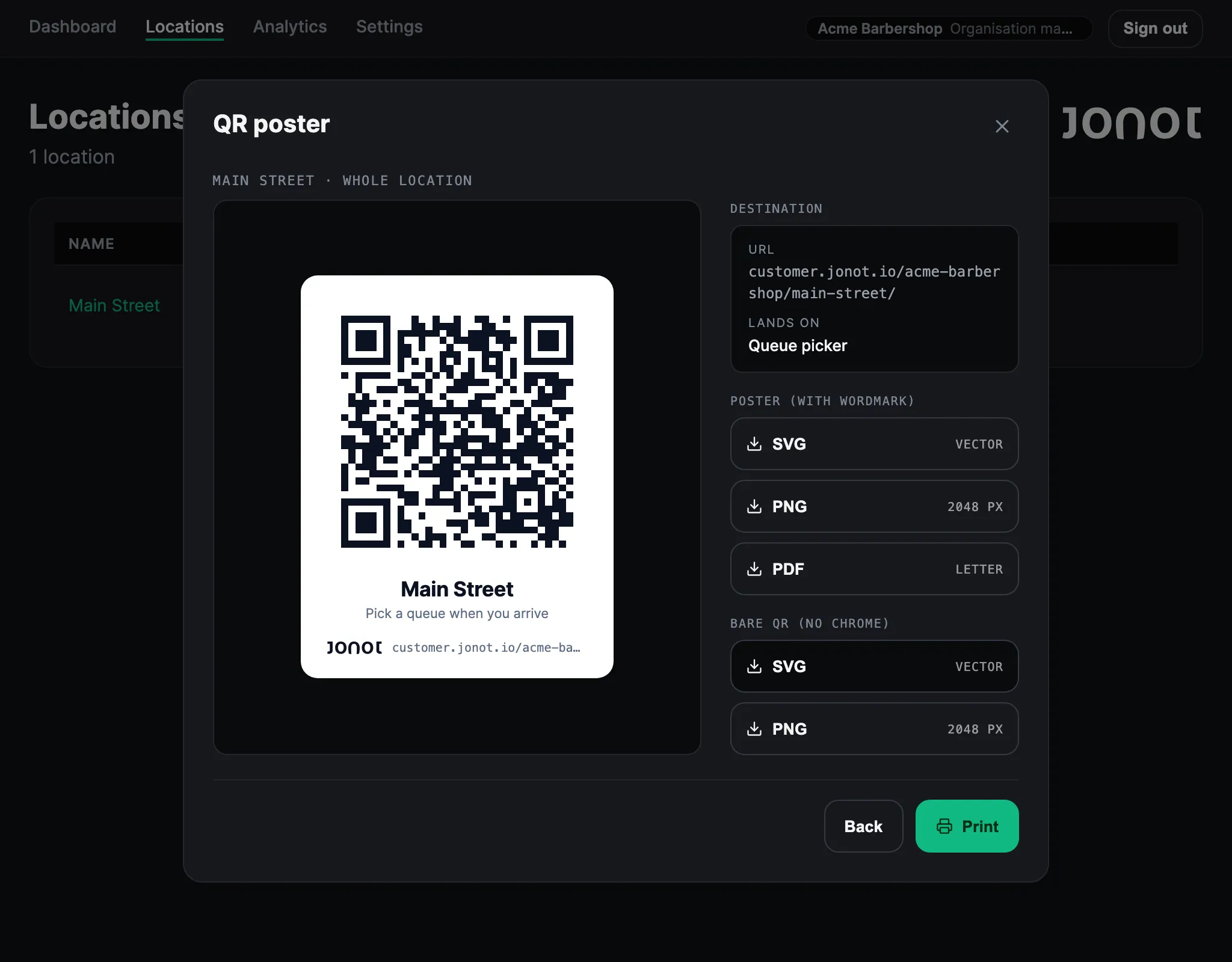
Get your QR code
Section titled “Get your QR code”-
Go to the Locations page in admin.
-
Click the Print QR poster icon on the location row.
-
Choose where the QR code takes customers, and then click Continue:
- Whole location opens a queue picker when the location has several queues, so customers choose a queue.
- A specific queue takes customers straight to that queue.
A whole-location link has the form
https://customer.jonot.io/{org}/{location}/. A queue link adds the queue at the end:https://customer.jonot.io/{org}/{location}/{queue}/.
The poster view shows the link that the QR code opens. From the poster view you can:
- Print the poster — click Print to print it from your browser.
- Download a file — download the poster with the Jonot wordmark as SVG, PNG, or PDF, or the QR code alone as SVG or PNG. Put the printed poster at your entrance, waiting area, or service counter so customers can scan it when they arrive.
To share a link to your whole organisation, use https://customer.jonot.io/{org}/. That page lists your organisation’s locations so customers can choose one. If the organisation has only one location, the link forwards customers to that location. During setup, the dashboard checklist item Share your join link also shows a QR code and this link, until you pair the first device. After that, share the link yourself.
How customers use it
Section titled “How customers use it”Customers scan the QR code with their phone camera. The camera’s built-in QR reader works, so they do not need to install an app. The link opens the customer page. If the poster is for the whole location, customers first choose a queue if the location has several. Then they tap Join queue. They receive a ticket number and can see their position update in real time.
Your queue is live
Section titled “Your queue is live”Customers can now join by scanning the QR code. See the Guides section to learn how to call customers, handle customers who do not arrive, and manage your team.